Key takeaways
- Connect the main gaming device by Ethernet. Use a suitable LAN port; a 1Gbps link is already sufficient for most gaming traffic.
- Place the router in the open and near the center of the home. Keep it away from enclosed cabinets and obvious sources of interference.
- Update firmware and change the administrator password. This improves maintenance and reduces the risk of leaving the router on outdated software.
- Enable QoS only if congestion is a problem. Prioritize the gaming device, then compare latency under the same household load before and after.
- Test at different times. Check for packet loss and latency spikes during a quiet period and while the household is using the connection. If wired play is stable but Wi-Fi is not, focus on placement or coverage; if both are unstable, contact your ISP or investigate the modem and line.
Best Gaming Routers for Competitive Online Play
For most competitive players, the best gaming router is a Wi-Fi 6 or 6E model with at least one 2.5Gbps port, reliable wired connections, and traffic-prioritization controls—not necessarily the router with the most antennas or the lowest advertised latency. Choose the TP-Link Archer GE800 for a large, high-demand home; the ASUS RT-AX86U Pro for a strong wired-and-Wi-Fi balance; or the TP-Link Archer GX90 for a more affordable dedicated gaming setup.
Quick comparison
| Router | Wi-Fi class | Wired highlights | Best fit | Typical market position |
|---|---|---|---|---|
| TP-Link Archer GE800 | Wi-Fi 7, tri-band | Two 10Gbps ports, four 2.5Gbps ports, four 1Gbps ports | High-speed plans, many devices, larger or demanding homes | Premium |
| ASUS RT-AX86U Pro | Wi-Fi 6, dual-band | One 2.5Gbps port, four 1Gbps LAN ports | One main gaming setup plus everyday household use | Upper midrange |
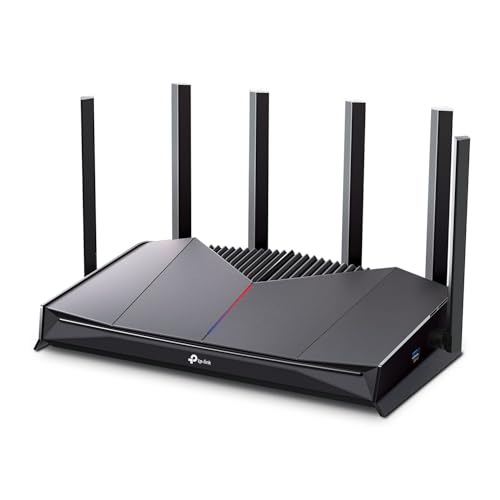
| TP-Link Archer GX90 | Wi-Fi 6, tri-band | One 2.5Gbps port, four 1Gbps LAN ports | Gaming traffic separated from other Wi-Fi activity | Midrange |
| ASUS TUF Gaming AX6000 | Wi-Fi 6, dual-band | Two 2.5Gbps ports, four 1Gbps LAN ports | Multiple wired devices without a premium Wi-Fi 7 price | Midrange |
Wi-Fi class and port speeds describe capabilities, not guaranteed real-world throughput. Actual performance depends on the internet connection, client devices, interference, home construction, and firmware. Regional hardware versions can also differ, so check the specifications for the exact model sold where you live.
Our top picks


As an Amazon Associate we earn from qualifying purchases at no extra cost to you.
Choose by your setup
| Your situation | Best starting point | Why |
|---|---|---|
| One player, console or PC near the router | ASUS RT-AX86U Pro | Connect the gaming device by Ethernet and use Wi-Fi for phones and other household devices. |
| Several gamers or busy household Wi-Fi | TP-Link Archer GX90 | Its tri-band design gives more flexibility for separating traffic, though it cannot eliminate a slow internet connection or weak signal. |
| Multi-gig internet and many fast wired devices | TP-Link Archer GE800 | Its collection of 2.5Gbps and 10Gbps ports gives more room for fast broadband, a NAS, or a multi-gig switch. |
| Several wired devices on a tighter budget | ASUS TUF Gaming AX6000 | Two 2.5Gbps ports are useful if the modem or another high-speed device also needs a faster connection. |
| Gaming room far from the router | Improve placement or add a wired access point first | A more expensive router may not overcome thick walls, floors, or a poor signal path. |
What matters more than “gaming” branding
Latency and stability
For online play, consistent latency and few interruptions matter more than peak download speed. A router can help manage local network congestion, but it cannot fix lag caused by a distant game server, a poor ISP route, or an unstable connection between your home and the provider.
Whenever possible, connect a PC or console to the router with Ethernet. This avoids Wi-Fi interference and reduces one source of jitter. If the wired connection still spikes when someone else uploads or downloads, look for a quality-of-service feature that can prioritize the gaming device or limit bufferbloat. Prioritization can help under load; it does not create extra bandwidth.
Traffic controls and ease of use
ASUS includes gaming-oriented controls such as device prioritization and adaptive QoS on the RT-AX86U Pro and TUF Gaming AX6000. TP-Link’s gaming models offer prioritization and gaming-focused management features. Names, options, and availability can change with firmware and region, so check the current feature list before buying.
Start with a simple rule: prioritize the gaming PC or console, then test while another household device is uploading. Avoid enabling every optimization at once. Some controls can reduce throughput or complicate troubleshooting, and the best setting is the one that lowers interruptions without creating new ones.
Coverage and home layout
Router antennas and advertised coverage figures do not predict signal quality through your particular walls. A central, open location usually beats a router tucked behind a television, inside a cabinet, or on the floor. For a multi-floor home, a wired access point on the other floor is often a more dependable fix than replacing one powerful router with another.
If you cannot run Ethernet, a mesh system or a compatible mesh node may extend coverage, but wireless backhaul uses some of the available radio capacity. Place a node where it still receives a strong signal from the main router—not in the room where the signal has already become unreliable.
How to set up a router for competitive play
- Connect the main gaming device by Ethernet. Use a suitable LAN port; a 1Gbps link is already sufficient for most gaming traffic.
- Place the router in the open and near the center of the home. Keep it away from enclosed cabinets and obvious sources of interference.
- Update firmware and change the administrator password. This improves maintenance and reduces the risk of leaving the router on outdated software.
- Enable QoS only if congestion is a problem. Prioritize the gaming device, then compare latency under the same household load before and after.
- Test at different times. Check for packet loss and latency spikes during a quiet period and while the household is using the connection. If wired play is stable but Wi-Fi is not, focus on placement or coverage; if both are unstable, contact your ISP or investigate the modem and line.
Buying considerations and ownership
Gaming routers span broad market ranges: capable Wi-Fi 6 models are often in the lower-to-mid hundreds of dollars, while feature-rich Wi-Fi 7 models can cost several hundred dollars. Prices vary by region and sales. Spend more for a clear need—such as multi-gig ports, additional bands, or better coverage—not simply because a product is labeled for gaming.
Check that the router has enough LAN ports for your console, PC, and other wired equipment. If it does not, an inexpensive unmanaged Ethernet switch can add ports; connect the switch to a LAN port on the router. Also check your modem or gateway: a 2.5Gbps router port will not deliver a multi-gig internet connection if the upstream equipment only has a 1Gbps connection.
Routers generally need little physical maintenance, but they do need sensible placement, occasional firmware updates, and adequate ventilation. Dust the vents periodically and avoid stacking equipment on top. If performance degrades, first restart the modem and router, check cables, and confirm whether the issue affects wired devices too. Replacing the router should not be the first response to every lag spike.
Bottom line
Choose the ASUS RT-AX86U Pro for a practical, all-around gaming setup with wired play and useful traffic controls. Pick the TP-Link Archer GX90 if tri-band flexibility is valuable in a busy home, or the TUF Gaming AX6000 if extra 2.5Gbps connectivity matters more than a third Wi-Fi band. The TP-Link Archer GE800 is for households that can use its premium Wi-Fi 7 and multi-gig port capacity. In every case, placement and an Ethernet cable to the main gaming device are often the most cost-effective upgrades.