Key takeaways
- Editing on the go: A rugged portable SSD such as the Samsung T9 or SanDisk Extreme Portable SSD is a practical choice for a laptop workflow. Look for a USB 3.2 Gen 2×2 or USB4 connection only if your computer supports it.
- High-bitrate 4K or multicamera projects: Use a fast NVMe SSD, such as a Samsung 990 PRO in a suitable USB4 enclosure, or a Thunderbolt NVMe drive. Confirm the enclosure’s interface and cooling; an NVMe drive’s internal speed does not guarantee that speed over USB.
- Large archive on a budget: A desktop hard drive such as the WD Elements Desktop or Seagate Expansion Desktop offers more capacity per dollar, but is better for backups and storage than editing directly from it.
- One drive for a home editing desk: A multi-bay NAS or RAID system can provide substantial capacity and shared access. It requires setup and does not replace a separate backup.
Best External Storage for Video Editing
The best external storage for video editing is a fast portable SSD for active projects, paired with a larger hard drive or desktop drive for backups and less frequently used footage. Choose by sustained speed—not just the advertised peak—then check that the drive’s connection, capacity, and workflow match your footage.
Quick picks by editing situation
- Editing on the go: A rugged portable SSD such as the Samsung T9 or SanDisk Extreme Portable SSD is a practical choice for a laptop workflow. Look for a USB 3.2 Gen 2×2 or USB4 connection only if your computer supports it.
- High-bitrate 4K or multicamera projects: Use a fast NVMe SSD, such as a Samsung 990 PRO in a suitable USB4 enclosure, or a Thunderbolt NVMe drive. Confirm the enclosure’s interface and cooling; an NVMe drive’s internal speed does not guarantee that speed over USB.
- Large archive on a budget: A desktop hard drive such as the WD Elements Desktop or Seagate Expansion Desktop offers more capacity per dollar, but is better for backups and storage than editing directly from it.
- One drive for a home editing desk: A multi-bay NAS or RAID system can provide substantial capacity and shared access. It requires setup and does not replace a separate backup.
SSD versus hard drive: what changes in an editing workflow?
An SSD has no moving parts, responds quickly to random file access, and usually handles portable editing better. That matters when scrubbing through footage, loading many small project files, or working with multiple streams. A hard drive is slower, especially for seeking between files, but offers much more capacity for the price. It can work for a single stream of less demanding media, but previews and scrubbing may feel less responsive.
Our top picks
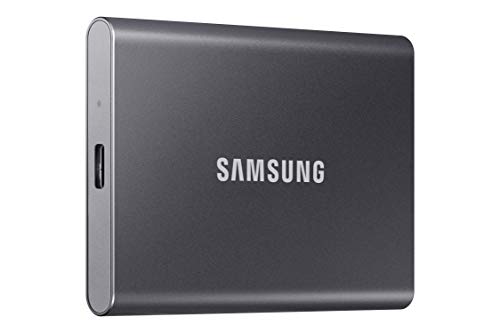 Samsung T7 Portable SSD 1TB Titan Gray
- Create
- Don’t waste a second waiting and spend more…
- Compact design with massive capacity
 Sandisk Professional 12Tb G Drive Desktop HDD
- USB-C (10Gbps) drive for fast backup with up…
- High-capacity, enterprise-class Ultrastar 7200RPM drive inside
- Mac Ready, Apple Time Machine compatible
 LaCie d2 Professional 10TB External Hard Drive
- The LaCie d2 Professional is the go to…
- Easily edit and archive projects with 10TB of…
- Seamlessly connect to USB C and Thunderbolt 3…
| Product | Key specs | |
|---|---|---|
| Samsung T7 Portable SSD 1TB Titan Gray | Create Don’t waste a second waiting and spend more… Compact design with massive capacity | Check price |
| Sandisk Professional 12Tb G Drive Desktop HDD | USB-C (10Gbps) drive for fast backup with up… High-capacity, enterprise-class Ultrastar 7200RPM drive inside Mac Ready, Apple Time Machine compatible | Check price |
| LaCie d2 Professional 10TB External Hard Drive | The LaCie d2 Professional is the go to… Easily edit and archive projects with 10TB of… Seamlessly connect to USB C and Thunderbolt 3… | Check price |
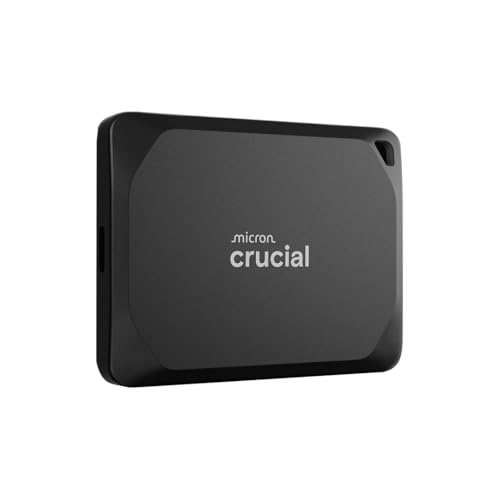 Crucial X10 Pro 1TB Portable SSD | Ultra-fast Speeds: Designed for professional creators, this external… Built to Last: Perfect for field work and… Broad Compatibility: External drive connects effortlessly with Windows,… | Check price |
As an Amazon Associate we earn from qualifying purchases at no extra cost to you.
Pay attention to sustained transfer speed. Short benchmark bursts can look impressive while the drive is empty, then fall when its cache fills or it heats up. Long card dumps, proxy generation, and large exports are more revealing workloads. For an SSD, check independent long-write results for the exact model and capacity; performance can vary between versions. For a hard drive, rotational speed and workload matter, but its mechanical seek time remains a limitation for editing.
Comparison: representative drive types
| Drive or setup | Capacity options | Connection | Practical transfer-speed range | Portability and best fit |
|---|---|---|---|---|
| Samsung T9 portable SSD | 1–4 TB | USB-C, USB 3.2 Gen 2×2 | Up to about 2,000 MB/s advertised; host and sustained workload can reduce this | Pocket-sized; active projects and travel, if the computer supports Gen 2×2 |
| SanDisk Extreme Portable SSD | Up to 4 TB, depending on model | USB-C, USB 3.2 | Model-dependent; some versions advertise up to about 1,050 MB/s | Compact and designed for portable use; check the exact model’s speed and capacity |
| NVMe SSD in a USB4 enclosure | 1–8 TB, depending on SSD | USB4 | Often around 2,000–3,800 MB/s in favorable conditions; enclosure, heat, and host affect results | Small but may need cooling; demanding 4K workflows and fast transfers |
| WD Elements Desktop or Seagate Expansion Desktop | Commonly 4–22 TB, depending on model | USB 3.x | Typically about 100–250 MB/s sequential; much slower for scattered access | Desk-bound, externally powered; archives, backups, and lower-cost capacity |
These are broad product-family figures, not guarantees for every capacity or hardware revision. Advertised maximums are not the same as sustained editing speed. A USB 3.2 Gen 2×2 drive connected to a standard 10 Gb/s USB port will not reach its full rated interface speed; Thunderbolt, USB4, and USB-C describe different capabilities, so check the computer’s actual port specifications.
Match the drive to your footage
Codec and editing style matter as much as resolution. A compressed 4K H.264 clip can require less storage bandwidth than a high-bitrate intraframe format, while multicamera timelines multiply the load. Raw footage, high-frame-rate clips, and several simultaneous streams may justify a fast NVMe drive. Proxies—smaller, easier-to-decode editing copies—can make a slower or smaller drive workable, though the original media still needs a safe home.
For a simple check, add the peak media bitrates of the streams you expect to play at once, then convert megabits to megabytes by dividing by eight. For example, four streams at 200 Mb/s each total 800 Mb/s, or 100 MB/s before overhead. A healthy hard drive may manage that sequential read rate, but seeking across four files can still cause dropped frames. An SSD gives more headroom for those scattered reads and for other tasks running at the same time.
Leave room for cache files, audio, graphics, and project versions. As a rough planning example, 1 TB holds around 3.3 hours of footage recorded at 100 GB per hour, before project files, proxies, and working space. Actual recording rates vary substantially by camera and format. If your project is close to the drive’s capacity, choose the next size up rather than filling the disk to its limit.
Choose by budget, space, and how often you move projects
| Your situation | Best-fit setup | Why |
|---|---|---|
| Frequent travel, limited space, regular editing | 1–4 TB portable SSD | Small, bus-powered, and responsive; pay for speed and portability you will use daily |
| New editor or tight budget | 1–2 TB SSD for the current project plus a large hard drive for backup | Keeps active work responsive without buying all storage at SSD prices |
| Several active 4K streams or frequent large transfers | USB4 or Thunderbolt NVMe SSD, with a compatible host | Higher bandwidth can shorten transfers and provide headroom, but costs more and may run hot |
| Growing archive or shared studio library | Large desktop hard drives or a NAS, plus a separate backup | Cost-effective capacity; a NAS adds network access but needs configuration and maintenance |
Ownership details that affect the real cost
Portable SSDs tolerate bumps better than spinning drives, but neither is immune to drops, water, theft, or controller failure. Rugged casing is not a backup plan. SSDs can slow during long writes as their cache fills or temperature rises, and their flash memory has finite write endurance. For ordinary editing, capacity and warranty are usually more useful buying checks than trying to estimate wear from a single project.
Hard drives are more vulnerable to shock while running. Keep desktop models on a stable surface, use their supplied power adapter, and eject them before unplugging. Both drive types can fail without warning; maintain another copy of irreplaceable footage on a separate device or location. A RAID setup can keep a system running after some drive failures, but it does not protect against accidental deletion, theft, or a power event that damages the whole system.
For a portable drive, use a short, reliable cable rated for the connection you need. Label drives by project and role, and avoid making your only copy of camera originals the same drive you carry between locations. If you use an enclosure with a separately purchased NVMe SSD, check compatibility, thermal management, and the enclosure’s real interface speed before buying.
Bottom line
For most editors, a 2 TB portable SSD is the strongest starting point for active projects, while a larger hard drive handles archives and backups economically. Step up to USB4 or Thunderbolt NVMe storage for demanding multistream work and large transfers, but only when the computer can use the connection. If footage is valuable, budget for a second copy before spending extra for a higher peak-speed number.