Key takeaways
- M1 and M2 MacBook Air: support one external display. A pen display uses that slot, so you cannot also run a separate monitor.
- M3 MacBook Air: can drive two external displays, but only with the laptop lid closed.
- M4 MacBook Air: supports two external displays with the built-in screen still on.
What's inside
The best drawing tablet for Mac in 2026 is a Wacom Intuos for beginners and note-takers, a Wacom, Huion or XP-Pen 16-inch pen display for illustrators who want to draw directly on screen, and an iPad with Apple Pencil through Sidecar if you already own a supported iPad. All of the main brands ship macOS drivers for Apple silicon, so the real decision comes down to screen versus no screen, which ports your Mac has, and how many external displays it can drive.
Pen tablet, pen display, or iPad: the core choice
| Type | Examples | Active area / screen | Pressure levels | Cable needs on a Mac | Typical price range |
|---|---|---|---|---|---|
| Small pen tablet (no screen) | Wacom Intuos S, Huion Inspiroy H640P, XP-Pen Deco series | About 6 x 4 in (152 x 95 mm) | 4,096 to 16,384 depending on model | 1 USB-C or USB-A, or Bluetooth on some | $40 to $100 |
| Medium pen tablet | Wacom Intuos M, Intuos Pro, XP-Pen Deco Pro | About 8.5 x 5.3 in (216 x 135 mm) or larger | 4,096 to 16,384 | 1 USB, often Bluetooth | $80 to $400 |
| 13-inch pen display | Wacom One, Wacom Movink 13, Huion Kamvas 13 | 13.3 in, 1920 x 1080 or higher | 4,096 to 16,384 | Single full-function USB-C, or HDMI plus USB | $250 to $900 |
| 16-inch pen display | Wacom Cintiq 16 / Cintiq Pro 16, Huion Kamvas Pro 16, XP-Pen Artist Pro 16 | 15.6 to 16 in, 1080p to 4K | 8,192 to 16,384 | Full-function USB-C, or HDMI/DisplayPort plus USB | $400 to $2,000+ |
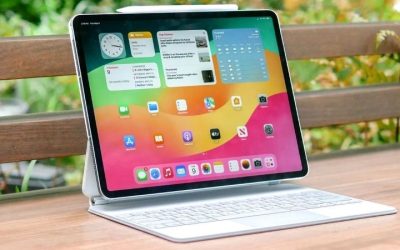
| iPad as display (Sidecar) | Supported iPad with Apple Pencil | 10.9 to 13 in | Apple Pencil pressure and tilt | Wireless or USB-C cable | Free if you own both |
Pressure level numbers matter far less than marketing suggests. The jump from 2,048 to 8,192 is noticeable in light-stroke control; the difference above that is subtle for most artists. Low initial activation force, minimal line wobble at slow speeds and low parallax on screen-based models matter more.
Best drawing tablet for MacBook Air
MacBook Air models have two Thunderbolt / USB-C ports and limited external display support, which shapes what works best:
- M1 and M2 MacBook Air: support one external display. A pen display uses that slot, so you cannot also run a separate monitor.
- M3 MacBook Air: can drive two external displays, but only with the laptop lid closed.
- M4 MacBook Air: supports two external displays with the built-in screen still on.
For an Air, a screenless pen tablet such as a Wacom Intuos or Huion Inspiroy is the simplest pairing: light, one cable or Bluetooth, and no display slot consumed. If you want to draw on screen, a 13-inch pen display that runs off a single USB-C cable keeps the setup portable, but check that it can be powered by the laptop or bring its power adapter, since some models need extra power over a second cable.
Best drawing tablet for MacBook Pro
MacBook Pro models with Pro, Max or newer chips support multiple external displays, have HDMI on most recent models and more Thunderbolt ports. That makes a 16-inch or larger pen display realistic as a second screen beside a regular monitor. A 2.5K or 4K 16-inch display pairs well with the Pro’s Retina panel because 1080p at 16 inches can look soft next to it. Color-managed displays with wide gamut coverage are worth it if you deliver print or client work.
Decision matrix
| Your situation | Best fit | Why |
|---|---|---|
| New to digital art, budget under $100 | Small or medium pen tablet | Cheap, durable, nothing to calibrate |
| Photo retouching in Photoshop or Lightroom | Medium pen tablet | Fast, precise, keeps your eyes on the main monitor |
| Illustration and comics, desk setup | 16-inch pen display | Natural hand-eye workflow, room for palettes |
| Travel, coffee shop sketching | 13-inch pen display or iPad | Portable, single-cable or wireless |
| Already own a recent iPad and Apple Pencil | Sidecar first, buy later if needed | Costs nothing to try |
| Animation or long daily sessions | Pen display with a stand and shortcut keys | Ergonomics and shortcut speed add up |
Mac setup steps that trip people up
- Install the driver from the maker’s site, choosing the version that lists your macOS release and Apple silicon support.
- Grant permissions. In System Settings, go to Privacy & Security and allow the tablet driver under both Accessibility and Input Monitoring. Without these, pressure or buttons may not work.
- Restart the Mac after granting permissions; many drivers only pick them up on restart.
- Use the right cable. Single-cable pen displays need a USB-C port and cable that carries video (DisplayPort Alt Mode). A charge-only USB-C cable gives power but no picture.
- Map the tablet to one screen. On multi-monitor setups, set the pen to the pen display only, or the cursor will jump across screens.
- Check stabilizer and smoothing settings in your drawing app and adjust the pressure curve in the driver before blaming the hardware for line wobble.
Ownership realities
- Pen nibs wear out. On a textured surface, heavy users may replace nibs every few weeks to few months. Most tablets include spares; extra packs are inexpensive.
- Surface texture fades. Paper-feel films and etched glass smooth out over a couple of years of heavy use. Replaceable matte screen protectors are an option for pen displays.
- macOS updates. Major macOS releases sometimes break older drivers until the maker updates them. Waiting a few weeks before upgrading the OS on a work machine is a sensible habit.
- Heat and power. Larger pen displays draw more power than a laptop port may supply; plan on using the included power adapter.
- Battery-free pens from Wacom, Huion and XP-Pen use electromagnetic resonance and never need charging, while Apple Pencil does need charging.
FAQ
Do drawing tablets work with Procreate on Mac?
No. Procreate is an iPad app. On Mac, popular options include Photoshop, Clip Studio Paint, Krita, Affinity tools and Rebelle.
Is Sidecar good enough for serious work?
For sketching and lighter work, yes. Wireless Sidecar can add slight lag; a cable helps. Some artists prefer running a native iPad app and exporting files instead.
Bottom line
On a MacBook Air, start with a screenless Wacom Intuos or similar pen tablet unless you specifically need to draw on screen. On a MacBook Pro or Mac desktop, a 16-inch pen display at 2.5K or higher is the best long-term upgrade. If you already own an iPad and Apple Pencil, try Sidecar before buying anything.