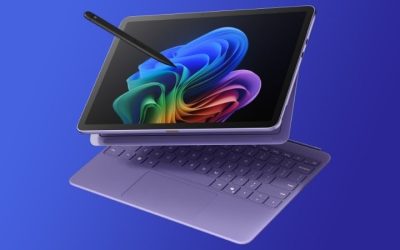
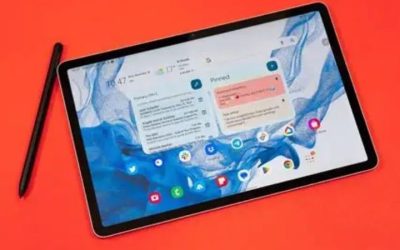
Digital drawing tablet choices hinge on pressure, tilt and active area, not slogans, so this roundup ranks each digital drawing tablet by pen pressure levels, screen type and connection. We combine maker specs with long-term artist feedback, note which need a computer, and list one honest drawback per pick so you match the tool to your art.
As an Amazon Associate we earn from qualifying purchases.
Our top picks


As an Amazon Associate we earn from qualifying purchases at no extra cost to you.
By Daniel Foster
Best Digital Drawing Tablet Picks Ranked
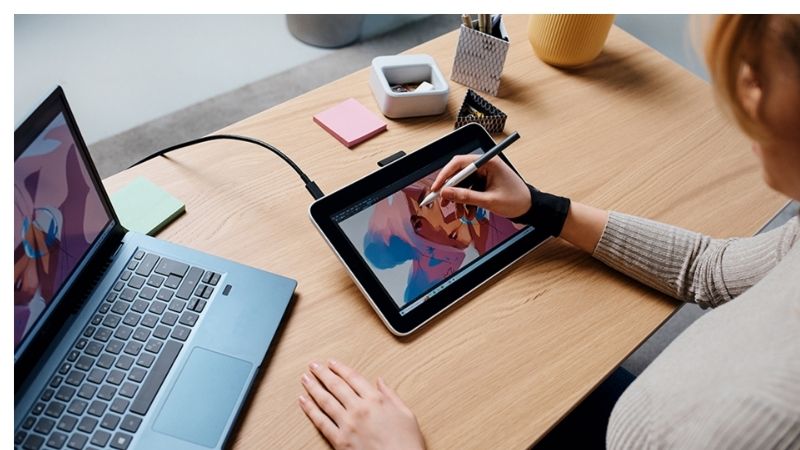
Drawing tablets split into three types: screenless pads you look at a monitor to use, pen displays you draw directly on, and standalone slates that need no computer. The picks below span budget to premium, and Amazon prices move often, so confirm the live figure before you buy.
| Model | Type | Pen / pressure | Tier |
|---|---|---|---|
| Wacom Intuos S | Screenless | EMR, 4096 levels | Budget |
| XPPen Deco Pro | Screenless | EMR, 8192, tilt | Budget |
| Huion Inspiroy Dial 2 | Screenless + dial | EMR, 8192, tilt | Mid |
| XPPen Artist 16 | Pen display | Laminated, 8192+ | Mid |
| Wacom Cintiq 16 | Pen display | EMR, 8192 | Premium |
| XPPen Magic Drawing Pad | Standalone Android | 16384 levels | Mid |
Wacom Intuos S (Screenless Entry)
The Wacom Intuos S is the trusted beginner pad: a small screenless tablet with a battery-free EMR pen at 4096 pressure levels, connecting to a computer where you watch the monitor as you draw. Wacom’s reliable drivers and build make it a safe, low-cost way to learn.
The screenless format takes practice, since your hand and the cursor are separate, and the pressure levels trail newer rivals. For a dependable, affordable entry into a digital drawing tablet where driver stability matters most, it remains a classic first choice for students.
XPPen Deco Pro (Screenless Value)
The XPPen Deco Pro undercuts Wacom while offering more on paper: a larger active area, a battery-free pen with 8192 pressure levels and tilt, plus a control dial and shortcut keys. For the money it gives serious pressure and tilt for expressive line work on a budget.
Like all screenless pads it needs the eye-hand separation of drawing while looking at a monitor, and XPPen’s drivers, while much improved, can need occasional tweaking. For value-focused artists who want high pressure and tilt without a screen, it is one of the best buys here.
Huion Inspiroy Dial 2 (Dial Control)
The Huion Inspiroy Dial 2 adds dual dials to a screenless pad, letting you zoom, resize brushes and scroll without touching the keyboard, alongside an 8192-pressure tilt-capable EMR pen. The generous active area and physical controls speed up a real drawing workflow noticeably.
It is still a screenless tablet, so beginners face the usual hand-eye adjustment, and the extra controls add a small learning curve. For artists who want efficient shortcuts and strong pen specs at a mid price, the dials make it a productive tool for daily work.
XPPen Artist 16 (Pen Display Value)
The XPPen Artist 16 lets you draw directly on a laminated 15.6-inch screen at high pressure levels, removing the eye-hand separation of screenless pads. Direct drawing feels natural and precise, and the laminated panel keeps the pen tip close to the line for accuracy.
It needs a computer to run, adds desk space and a power connection, and colour accuracy trails premium displays. For artists who want the natural feel of drawing on-screen without a professional price, it is a strong value pen display and a big step up from screenless pads.
Wacom Cintiq 16 (Pen Display Premium)
The Wacom Cintiq 16 is the professional standard pen display: a 15.6-inch screen with a battery-free 8192-pressure pen, excellent parallax control and Wacom’s rock-solid drivers. Studios rely on it for its accuracy, consistency and long-term reliability under heavy daily use.
It is premium-priced, needs a capable computer and a desk setup, and lacks the extra shortcut dials of cheaper rivals. For working illustrators who value driver stability and precision above all, it is the safe professional choice, though hobbyists get most of the feel from the Artist 16.
XPPen Magic Drawing Pad (Standalone)
The XPPen Magic Drawing Pad breaks from the pack as a standalone Android slate: a 12.2-inch laminated screen and a bundled pen with 16384 pressure levels, needing no computer at all. It runs Android art apps directly, so you can draw anywhere without a desk or PC.
Its app ecosystem is smaller than iPad’s and general performance is built for art rather than everything. For artists who want a portable digital drawing tablet that works on its own, away from a computer, it delivers strong pen specs and true portability at a mid price.
How to Choose a Digital Drawing Tablet
Match the type, pen specs and setup to your art and workspace before you buy. The points below settle most decisions faster than comparing pressure numbers, since the format matters as much as the pen.
The Specs That Decide It
First choose the type: screenless pads are cheapest but need eye-hand adjustment, pen displays let you draw directly for a natural feel, and standalone slates need no computer. Then weigh pen pressure levels, tilt and, for displays, screen resolution and colour accuracy.
A battery-free EMR pen never needs charging, which most artists prefer. Confirm whether the tablet requires a computer and whether your machine can drive it. Deciding the type and pen first prevents buying a screenless pad when you wanted to draw directly on a screen.
Space, Setup and Fit
Format decides desk needs. A screenless pad is compact and portable, a pen display needs monitor-sized desk space plus power and a cable to a computer, and a standalone slate works anywhere. Measure your desk and plan for cables before choosing a large pen display.
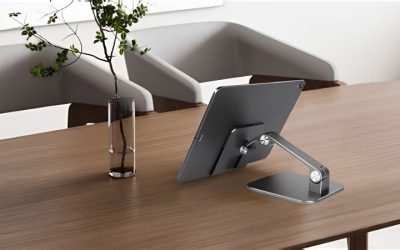
Match the active area or screen size to your style, since larger surfaces suit sweeping strokes while small pads travel better. Check the dimensions in inches and centimetres against your workspace, and consider a stand for a pen display so you can draw at a comfortable angle.
Software, Value and Timing
Confirm your art software runs on the setup: Procreate is iPad-only, while Clip Studio, Krita and Photoshop span computers and some standalone slates. Screenless pads and pen displays rely on your PC’s power, so match the tablet to a machine that can handle your files and layers.
On timing, the late-June Prime Day and November sales are the strongest windows for a digital drawing tablet, and they are popular gifts for artists in the holiday season, though Amazon shifts sale dates each year, so confirm the official ones before planning a purchase.
Digital Drawing Tablet FAQ
These are the questions artists ask most, covering screenless pads versus pen displays, whether you need a computer and if beginners should start cheap.
Screenless pad or pen display?
A screenless pad is cheaper and portable but needs practice drawing while watching a monitor. A pen display lets you draw directly on the screen for a natural feel at a higher price. Beginners on a budget often start screenless, while those who can spend more prefer a pen display.
Do drawing tablets need a computer?
Most do. Screenless pads and pen displays connect to a PC or Mac that runs the art software and provides the power. Standalone slates like the XPPen Magic Drawing Pad and iPads run apps on their own. Choose a standalone model if you do not want to be tied to a computer.
Should beginners buy a cheap tablet first?
Yes, usually. An affordable screenless pad like the Wacom Intuos or XPPen Deco lets you learn the skills before investing in a pen display. Once you know you enjoy digital art and want to draw directly on-screen, upgrading to a display or standalone slate makes more sense.
See More:
- Best eyeshadow blender brush
- Best frozen foods for air fryer
- Best frozen food for air fryer
- Best way to reheat steak in air fryer
- Best air fryer recipes book
Bottom Line on the Best Digital Drawing Tablet
The best digital drawing tablet matches your art and setup: a Wacom Intuos or XPPen Deco Pro for affordable screenless learning, a Huion Inspiroy Dial 2 for dial-driven workflow, an XPPen Artist 16 or Wacom Cintiq 16 for drawing directly on-screen, and an XPPen Magic Drawing Pad for computer-free portability. Choose the type first, weigh pressure and screen, confirm your software, and let Prime Day or the holidays set the price. Match the tool and your art flows.