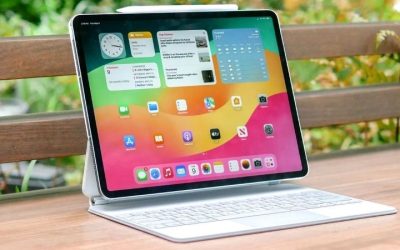
Stylus pen review value is set by pressure, tilt and compatibility, not slogans, so this stylus pen review ranks six pens by latency, feature set and which tablets they support. We combine maker specs with long-term owner feedback, flag the protocol each pen needs, and list one honest drawback per pick so you match the pen to your slate.
As an Amazon Associate we earn from qualifying purchases.
Our top picks



As an Amazon Associate we earn from qualifying purchases at no extra cost to you.
By Daniel Foster
Stylus Pen Review: Top Pens Ranked
The numbers that matter are pressure levels, tilt, latency, palm rejection and, above all, which system a pen works with. The picks below run budget to premium across Apple and Android, and Amazon prices move often, so confirm the live figure before you buy.
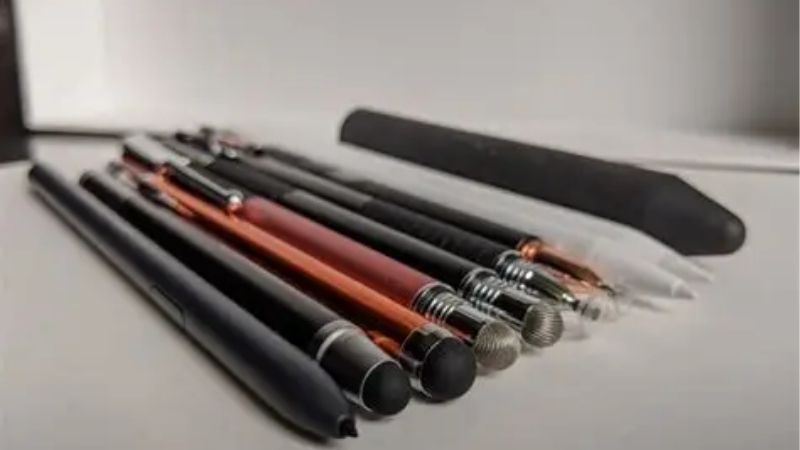
| Stylus | Works with | Key features | Tier |
|---|---|---|---|
| Apple Pencil Pro | iPad Pro M4, Air M2 | Pressure, tilt, hover, haptics | Premium |
| Samsung S Pen | Galaxy Tab S/FE | EMR, tilt, no charging | Included |
| Apple Pencil (USB-C) | Most recent iPads | Tilt, hover, no pressure | Mid |
| Logitech Crayon | Recent iPads | Tilt, palm rejection | Mid |
| Metapen M2 | Recent iPads | Tilt, magnetic, budget | Budget |
| Universal disc stylus | Any touchscreen | Basic tapping/notes | Budget |
Apple Pencil Pro (Best for iPad Art)
The Apple Pencil Pro is the top drawing pen for compatible iPads, adding pressure, tilt, hover, a squeeze gesture, barrel-roll and haptic feedback with very low latency. For Procreate and note apps it feels natural and precise, and it charges and stores magnetically on the iPad’s edge.
The catch is narrow compatibility, since it only works with the iPad Pro M4 and iPad Air M2, and it is premium-priced. For artists and heavy note-takers on those models it is unmatched, but owners of older or cheaper iPads must choose the USB-C Pencil or a third-party pen instead.
Samsung S Pen (Best Value, Included)
The S Pen is the standout value in this stylus pen review because it comes free in the box with every Galaxy Tab S and FE model. It uses battery-free Wacom EMR technology, so it never needs charging, and offers tilt and low latency for handwriting and sketching.
The basic S Pen lacks the Bluetooth air gestures of the premium versions, and it only works with Samsung tablets that support EMR. For Galaxy owners it is a superb no-cost pen; for everyone else it is not an option, since it will not function on iPads or other Android slates.
Apple Pencil USB-C (Mid iPad Pick)
The USB-C Apple Pencil is the affordable Apple option, offering tilt and, on M-series iPads, hover, plus magnetic attachment. It suits notes, mark-up and casual sketching across most recent iPads, giving genuine Apple pen behaviour without the Pro model’s premium price.
The key limit is no pressure sensitivity, so line weight does not vary with how hard you press, which matters for serious art. It also charges by cable rather than magnetically. For note-takers and light sketchers on iPad who do not need pressure, it is the sensible mid-tier choice.
Logitech Crayon (Durable iPad Pen)
The Logitech Crayon is a rugged, kid-friendly iPad pen with tilt and reliable palm rejection, popular in schools for its durability and flat, roll-proof shape. It works across recent iPads without pairing, charges over USB-C, and shrugs off the drops that worry parents and teachers.
Like the USB-C Pencil, it has no pressure sensitivity, so it is aimed at notes and mark-up rather than pressure-based art. For students, families and anyone who wants a tough, fuss-free iPad pen at a mid price, its durability and grip make it a very practical choice.
Metapen M2 (Budget iPad)
The Metapen M2 is the budget iPad pen that punches above its price: tilt support, palm rejection, magnetic attachment and fast charging at a fraction of the Apple Pencil’s cost. For handwriting, mark-up and casual notes it performs close to the pricier options in daily use.
It lacks true pressure sensitivity and the premium gestures of first-party pens, and build quality is plainer. For students and note-takers who want most of the experience for far less, it is excellent value, though dedicated artists will still prefer a pressure-sensitive first-party pen.
Universal Disc Stylus (Any Screen)
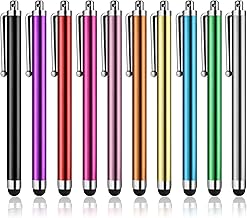
A universal capacitive disc or fibre-tip stylus works on any touchscreen tablet or phone, needing no charging or pairing. It is the answer for older or budget slates that do not support an active pen, letting you tap, scroll and jot basic notes without smudging the screen.
It offers no pressure, tilt or palm rejection, so it is unsuitable for real drawing or dense note-taking. As a cheap, universal tool for basic input on devices without active pen support, though, it fills a genuine gap that the premium pens in this stylus pen review cannot.
How to Choose in This Stylus Pen Review
Match the pen to your tablet and your task before you buy, since the wrong protocol simply will not work. The points below settle most decisions faster than comparing pressure numbers alone.
The Specs That Decide It
Compatibility is the first deciding spec: an iPad pen will not work on Android and vice versa, and many models need a specific protocol like Apple’s or Wacom EMR. After that, weigh pressure sensitivity, tilt, palm rejection and latency, which matter most for drawing.
For notes and mark-up, tilt and palm rejection are enough and pressure is optional, so a cheaper pen suffices. For art, pressure sensitivity is essential. Deciding compatibility and whether you need pressure first prevents buying a beautiful pen your tablet cannot even recognise.
Fit, Power and Comfort
Consider how the pen powers and attaches. Battery-free EMR pens like the S Pen never charge, magnetic pens store on the tablet’s edge, and USB-C pens need a cable now and then. A flat, roll-proof body like the Crayon suits desks and bags, while round pens can roll away.
Grip and weight affect long sessions, so a comfortable barrel matters for heavy writers and artists. Check whether the pen attaches magnetically to your model for storage and charging, since a pen that clips on is far less likely to be lost than one you carry loose.
Value, Use and Timing
Match spend to task: pay for a first-party pressure pen only if you draw, and save with a budget pen for notes. Remember Galaxy tablets include an S Pen free, so Samsung owners rarely need to buy one, which changes the value maths compared with the iPad ecosystem.
On timing, the late-June Prime Day and November sales are the strongest windows for a stylus pen review pick, and pens make easy add-on gifts in the holiday season, though Amazon shifts sale dates each year, so confirm the official ones before planning a purchase.
Stylus Pen Review FAQ
These are the questions buyers ask most about tablet pens, covering cross-brand use, whether pressure matters and if budget pens are good enough.
Will any stylus work with my tablet?
No. Active pens are protocol-specific, so an iPad pen will not work on Android and an S Pen only works on compatible Galaxy tablets. Universal disc styluses work on any touchscreen but offer no pressure or tilt. Always match an active pen to your tablet’s exact system before buying.
Do I need a pressure-sensitive pen?
Only for drawing and painting, where pressure varies line weight and shading. For handwriting, notes and mark-up, tilt and palm rejection are enough, so a cheaper pen without pressure works well. Decide whether you create art or mainly write, then buy the matching pen accordingly.
Are budget styluses good enough?
For notes and mark-up, yes. Pens like the Metapen M2 offer tilt and palm rejection close to first-party feel at a fraction of the price. For pressure-based art they fall short, so serious artists should invest in an Apple Pencil Pro or an S Pen on supported tablets.
See More:
- Best eyeshadow blender brush
- Best frozen foods for air fryer
- Best frozen food for air fryer
- Best way to reheat steak in air fryer
- Best air fryer recipes book
Bottom Line on This Stylus Pen Review
This stylus pen review points you by tablet and task: the Apple Pencil Pro for iPad art, the free S Pen for Galaxy owners, the USB-C Pencil or Logitech Crayon for iPad notes, the Metapen M2 for budget writing, and a universal disc stylus for older or non-active screens. Match the protocol first, decide whether you need pressure, and let Prime Day or the holidays set the price. Match the pen to your slate and writing or drawing feels natural.