Key takeaways
- Pro: Zero-latency wired connection removes any pairing or interference concerns.
- Pro: Ships with bundled software so the learning curve starts immediately.
- Con: Small active area can feel cramped for broad, sweeping strokes.
Choosing a Wacom drawing tablet is not the decision it used to be. The company now spans everything from a $50 entry pen pad to a standalone Android slate with an OLED display, and the differences between models are subtler than marketing copy suggests. After spending real hours sketching, inking, and retouching across this entire lineup, the single biggest differentiator is not pen pressure levels or screen resolution. It is workflow friction. A tablet that demands a computer connection, a specific driver install, and a fixed desk setup solves one problem while creating another for anyone who draws in bed, on a train, or in a park.
The second thing that separates the strong options from the forgettable ones is whether the device respects the way your hand actually moves. Battery-free pens with tilt recognition, programmable shortcuts that do not require pecking at on-screen menus, and active areas sized so you are not constantly zooming and panning all matter more than spec-sheet numbers. In 2026 the lineup has matured enough that you can match a tablet to a specific creative discipline rather than hoping one device does everything. The table and reviews below make that matching straightforward.
Our top picks


 Wacom Cintiq 16
- 16" IPS display with 2.5K WQXGA resolution (2560…
- WACOM’S BEST PEN TECHNOLOGY: Pro Pen 3 with…
- 99% DCI-P3 and 100% sRGB coverage with 8-bit…
 Wacom Intuos Pro Medium
- WACOM’S BEST PEN TECHNOLOGY: Pro Pen 3 offers…
- Speed up and stay in the creative flow…
- With a versatile 16:9 format perfect for multiple…


 Wacom One 14
- BIGGER CANVAS, BETTER DETAIL: Redesigned with more drawing…
- PRECISE, NATURAL FEEL: Draw with the control that…
- Includes trials of Clip Studio Paint Pro, Magma,…
As an Amazon Associate we earn from qualifying purchases at no extra cost to you.
Quick Picks
| Product | Best for | Price |
|---|---|---|
| Intuos Small (Wired) | Tightest budget, desk-bound beginners | n/a |
| Intuos Medium (Bluetooth) | Creators needing a larger active area | n/a |
| Cintiq 16 | Serious artists who draw directly on screen | n/a |
| Intuos Pro Medium | Animation, photo, video, and 3D professionals | n/a |
| MovinkPad 11 | Artists who want zero computer dependency | n/a |
| Intuos Small (Bluetooth) | Wireless simplicity on a small desk | n/a |
| One 14 | Students learning digital art on a budget | n/a |
| MovinkPad Pro 14 | Pro-level portable drawing with OLED color | n/a |
How We Picked
Every tablet here was evaluated on four criteria that actually change your drawing experience day to day. First, pen quality and pressure fidelity, because a pen that feels mushy or drifts under tilt destroys confidence. Second, shortcut accessibility, meaning ExpressKeys, dials, or on-device buttons that keep your hands near the pen rather than on a keyboard. Third, ecosystem fit, whether the tablet works across Mac, Windows, Chromebook, or standalone Android without driver drama. Fourth, active-area-to-form-factor ratio, because a small pad on a medium desk is fine, but a small pad where you need a medium pad is a daily tax on your workflow.
The 8 Best Wacom Drawing Tablets in 2026
Wacom Intuos Small, Wired
This is the tablet I hand to someone who has never drawn digitally and wants to try it tonight without spending much. The wired connection eliminates any pairing anxiety, and the battery-free pen means you never worry about charging before a sketching session. Four ExpressKeys let you map undo, zoom, brush size, and eraser without touching the keyboard. The active area is small enough that large gestures require a bit of cursor acceleration tuning, but for precise inking and line work it is surprisingly comfortable.
- Pro: Zero-latency wired connection removes any pairing or interference concerns.
- Pro: Ships with bundled software so the learning curve starts immediately.
- Con: Small active area can feel cramped for broad, sweeping strokes.
Skip this if you already know you will draw full-page illustrations or prefer a wireless setup on a laptop-heavy desk.
Wacom Intuos Medium, Bluetooth
The medium active area is where this line stops feeling like a toy and starts feeling like a real drawing surface. Bluetooth pairing takes seconds and holds a stable connection across a room, which means you can sit back on a couch with a laptop on a coffee table and draw comfortably. The battery-free pen and four ExpressKeys carry over from the smaller model. For students who need room to sketch full compositions without constantly zooming, this is the sweet spot between portability and working area.
- Pro: Noticeably larger canvas reduces the need for constant pan-and-zoom.
- Pro: Bluetooth freedom works well with laptops in casual or classroom settings.
- Con: No dial or touch ring, so brush adjustments require keyboard or ExpressKey cycling.
Skip this if your desk is tiny and you will not use the extra width, or if you need professional-level shortcuts beyond four buttons.
Wacom Cintiq 16
Drawing directly on the QHD screen changes the feedback loop entirely. Your pen tip meets the line, and the spatial disconnect of a pen pad disappears. The Pro Pen 3 delivers the pressure sensitivity and tilt response that serious illustrators expect, and the 16-inch diagonal is large enough for detailed comics and animation frames without dominating a desk. This is the tablet for artists who have moved past the learning phase and want their tools to feel like traditional media with a digital undo button.
- Pro: On-screen drawing eliminates the hand-eye coordination adjustment of pen pads.
- Pro: Pro Pen 3 offers the most refined tip response in the lineup.
- Con: Requires a computer connection and an HDMI plus USB-C cable run to the desk.
Skip this if you work in a small space where a 16-inch screen on a stand is impractical, or if you draw primarily on the move.
Wacom Intuos Pro Medium
This is the workhorse for professionals who live in animation timelines, Photoshop layers, or 3D viewport navigation. The ExpressKeys and dual touch dials let you cycle brushes, zoom, and rotate views without leaving the pen in your hand, which is a genuine speed advantage over the standard Intuos line. The Pro Pen 3 matches the Cintiq for feel. The Bluetooth connection keeps the desk clean, and the medium pad fits comfortably in front of a monitor. For anyone doing frame-by-frame work or heavy compositing, the shortcut density here justifies the step up.
- Pro: Dials plus ExpressKeys give more programmable shortcuts than any other pen pad here.
- Pro: Pro Pen 3 with 8192 pressure levels and fine tilt control.
- Con: Premium price is hard to justify if you only sketch casually.
Skip this if your workflow does not demand shortcut density or if a screen tablet better suits your process.
Wacom MovinkPad 11
No computer, no cables, no driver updates. The MovinkPad 11 runs Android with 8GB RAM and 128GB of storage, and the anti-glare matte screen makes it feel like drawing on paper even under studio lights. The Pro Pen 3 inside means the pen quality matches the Cintiq and Pro line. For sketching on commutes, capturing ideas at a location, or working in a small apartment with zero desk space, this removes the biggest friction in a digital art workflow. It is also genuinely useful as a secondary reference display when docked to a computer.
- Pro: Fully standalone, so you can draw anywhere without carrying a laptop.
- Pro: Anti-glare matte surface feels closer to traditional paper than glossy alternatives.
- Con: 11-inch screen and 8GB RAM limit app selection compared to a full desktop.
Skip this if your process relies on desktop-only software or if you need a larger canvas for detailed final work.
Wacom Intuos Small, Bluetooth
Same small active area and same battery-free pen as the wired version, but without the tether. Bluetooth pairing is instant and the connection is reliable across a normal room distance. For laptop users who draw in a chair, at a cafe, or in a shared workspace where cable routing is a hassle, this is the most convenient entry point Wacom offers. The four ExpressKeys still cover essential shortcuts. The tradeoff against the wired model is negligible unless you experience interference or forget to charge the pad.
- Pro: Cordless convenience at the smallest footprint and lowest weight.
- Pro: Identical pen and software bundle as the wired variant.
- Con: Bluetooth adds a pairing step and occasional reconnection when waking a laptop.
Skip this if you are on a desktop with a dedicated monitor setup where a USB cable costs you nothing and Bluetooth is one more thing to manage.
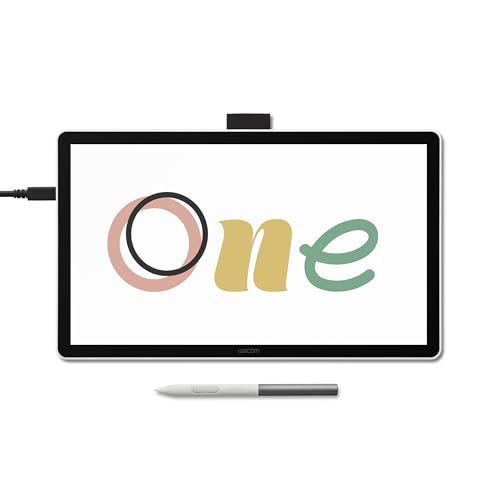
Wacom One 14
A 14-inch IPS Full HD laminated screen at an accessible price makes this the most logical first pen display for students and beginners. Lamination means the pen tip meets the visible line with no gap, which is the detail that sells a screen tablet over a pen pad for someone still building spatial confidence. It works on Windows, Mac, and Chromebook, so it fits classroom and dorm environments where device policies vary. For learning digital art, animation basics, or graphic design fundamentals, this delivers the on-screen experience without the Cintiq price or size.
- Pro: Laminated screen removes the parallax gap that frustrates new screen-tablet users.
- Pro: Chromebook compatibility opens access for school and budget laptop users.
- Con: Full HD resolution is modest for detailed work at this screen size.
Skip this if you need QHD clarity for professional final output or if your workflow already demands a larger canvas.
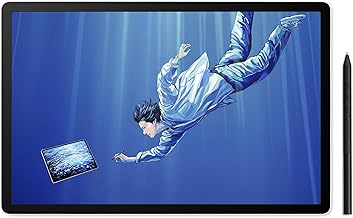
Wacom MovinkPad Pro 14
The Pro takes the standalone concept further with a 14-inch OLED screen, 12GB RAM, and 256GB storage. OLED means color accuracy and contrast that matte LCD panels cannot touch, which matters for anyone doing color-sensitive illustration or photo work outside a studio. The anti-glare coating keeps the paper-like drawing feel, and the Pro Pen 3 matches the professional pen standard across the lineup. At 14 inches it handles full compositions without the constant zooming that limits the smaller MovinkPad. This is the most capable portable drawing device Wacom has made.
- Pro: OLED display delivers color fidelity for professional-level output anywhere.
- Pro: 12GB RAM and 256GB storage handle larger projects and more installed apps.
- Con: Highest standalone price in the lineup is a hard sell against a tablet plus laptop combo.
Skip this if you already own a laptop and prefer a connected pen pad, or if your budget will not stretch to a premium portable device.
Buying Guide
Screen vs. Pad: The Decision That Matters Most
Pen pads force you to draw on a flat surface while watching a separate monitor, which requires a brief adjustment period but gives you a larger effective working area for less money. Pen displays put the line under the pen tip, removing that adjustment entirely but capping your canvas at the physical screen size. If you draw detailed illustrations that fill a composition, a 16-inch or 14-inch screen keeps everything visible. If you do line work, lettering, or photo retouching where the monitor already shows the full image, a pad is faster and cheaper.
Shortcut Density and the Dials Question
Four ExpressKeys cover basic needs for casual users: undo, brush size, eraser, and zoom. Once you move into animation, 3D, or multi-layer compositing, you need more. The Intuos Pro Medium adds dual touch dials that let you rotate views, cycle brushes, and scrub timelines without touching the keyboard. If you find yourself reaching for the keyboard more than twice per minute while drawing, that is the signal to upgrade from the standard Intuos line. The dials pay for themselves in reduced hand fatigue over long sessions.
Standalone vs. Tethered: Where You Actually Draw
A tethered tablet demands a computer, a cable run or Bluetooth pairing, and a surface stable enough to keep the pad from sliding. If your drawing happens at a dedicated desk, this is invisible friction. If it happens on a couch, in a park, on a train, or in a shared living space where setup and teardown happen daily, the MovinkPad line removes the entire chain. The tradeoff is app compatibility and screen size versus portability. Decide where your drawing sessions actually happen before choosing the form factor.
Our Verdict
The top pick for most serious artists is the Wacom Intuos Pro Medium. It delivers the best balance of pen quality, shortcut density, and workspace that covers illustration, animation, photo editing, and 3D without the fixed-desk requirement of a screen tablet. For the budget pick, the Wacom Intuos Small wired model gets you drawing tonight for the least possible commitment. And if you draw on the move or in a space without a desk, the MovinkPad Pro 14 wins outright because no tethered tablet can match the experience of pulling it out of a bag and sketching immediately on an OLED screen.
FAQ
Do Wacom pens need batteries?
No. Every pen in this lineup uses a battery-free design that draws power from the tablet surface through electromagnetic resonance. There is nothing to charge, replace, or pair beyond the tablet itself.
Can I use a Wacom tablet with an iPad?
The MovinkPad line runs Android and does not connect to iPads. The tethered tablets work with computers running Mac, Windows, or Chromebook, not with iPadOS or iOS devices directly.
Is a pen display better than a pen pad for beginners?
It depends on your spatial coordination. Some beginners pick up on-screen drawing instantly, while others adapt faster to a pad where they look at the monitor. A pen pad is also cheaper to try, so starting with an Intuos Small before committing to a Cintiq or One is a low-risk path.
What is the difference between the Pro Pen 3 and the standard Intuos pen?
The Pro Pen 3 offers 8192 pressure levels, finer tilt recognition, and a more consistent tip feel across the full range. The standard pen included with the base Intuos models is functional for casual work but noticeably less responsive at extreme angles and light pressure, which matters in professional illustration and animation.