Tablet for drawing should be judged by pen response and colour, not slogans, so this roundup ranks each tablet for drawing by pressure and tilt support, colour gamut and refresh rate. We combine maker specs with long-term artist feedback, note which pens are included, and list one honest drawback per pick.
As an Amazon Associate we earn from qualifying purchases.
Our top picks


 Bravokids 10 Inch LCD Writing Tablet for
- 10-inch LCD colorful screen, easy for viewing and…
- Over 100,000 times smoothly rewriting ,save thousands of…
- Writing tablet doodle board creates lines as writing…

As an Amazon Associate we earn from qualifying purchases at no extra cost to you.
By Daniel Foster
Best Tablet for Drawing Ranked by Pen and Colour
Artists care about latency, tilt and colour accuracy first, then app support. The picks below span standalone Android art slates to flagship iPads, in budget to premium tiers. Amazon prices shift often, so read the tiers as a guide and check the live figure before buying.
| Tablet | Screen | Pen / apps | Tier |
|---|---|---|---|
| XPPen Magic Drawing Pad | 12.2″ LCD, laminated | Pen included / Android art | Budget |
| Xiaomi Pad 6 | 11″ 144Hz LCD | Pen extra / Krita, IbisPaint | Budget |
| Apple iPad (10th gen) | 10.9″ LCD | USB-C Pencil / Procreate | Mid |
| Galaxy Tab S9 | 11″ 120Hz AMOLED | S Pen included / Clip Studio | Premium |
| Apple iPad Air (M2) | 11″ LCD, P3 colour | Pencil Pro / Procreate | Premium |
| Apple iPad Pro (M4) | 11-13″ OLED, 120Hz | Pencil Pro / Procreate | Premium |
XPPen Magic Drawing Pad (Budget)
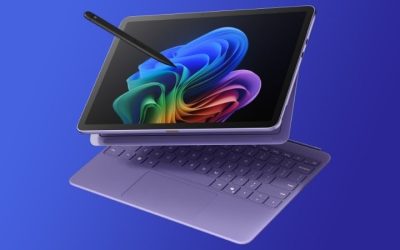
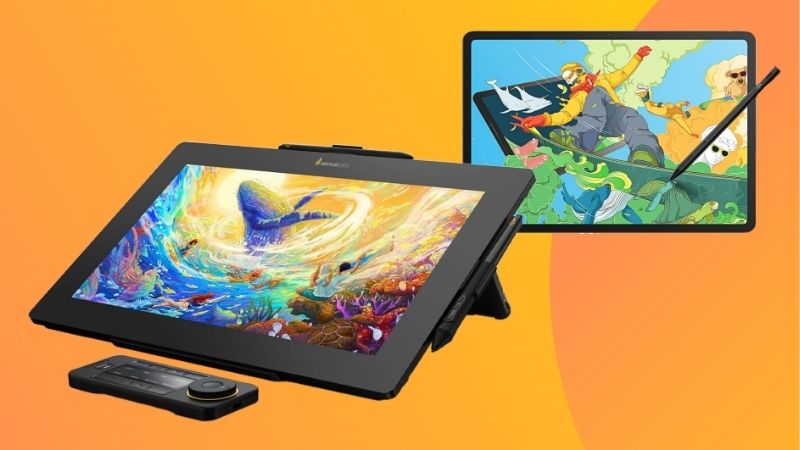
The Magic Drawing Pad is a standalone Android art slate: a 12.2-inch laminated LCD with a bundled pen offering high pressure levels and tilt, aimed squarely at illustrators on a budget. Lamination reduces the gap between pen tip and image, which sharpens line accuracy noticeably.
The catch is a smaller app ecosystem than iPad and modest general performance, since it is built for art rather than everything. For a first dedicated tablet for drawing without a computer, it delivers pen quality well above its price, provided your app of choice runs on Android.
Xiaomi Pad 6 (Budget)
The Xiaomi Pad 6 offers a fast 11-inch 144Hz LCD and Snapdragon 870, a strong base for sketching apps like Krita and IbisPaint at a budget price. The high refresh rate makes strokes feel fluid, and the screen is bright and sharp for casual and hobby illustration.
The stylus is a separate purchase and pen pressure support is good rather than pro-grade, plus regional warranty can be limited. For hobbyists who want smooth performance and a lively screen without paying flagship prices, it is a capable and affordable drawing companion.
Apple iPad 10th Generation (Mid)
The 10th-gen iPad runs Procreate and the deep iPadOS art library on a 10.9-inch LCD with the A14 chip, giving beginners a proven, well-supported drawing platform. Apple’s app quality and years of updates make it a safe entry into serious digital illustration on a tablet.
The USB-C Apple Pencil lacks pressure sensitivity, and the non-laminated screen adds a small gap between tip and line. Serious artists should step up to a Pencil Pro model, but for learning and casual work this iPad is a reliable, affordable tablet for drawing with top apps.
Samsung Galaxy Tab S9 (Premium)
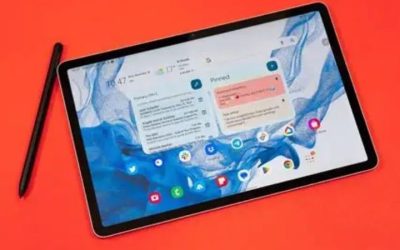
The Tab S9 pairs an 11-inch 120Hz AMOLED with an included, low-latency S Pen and runs Clip Studio Paint well. AMOLED colour is vivid and contrast is deep, while the fast refresh rate and responsive pen make line work feel immediate for detailed illustration.
Base storage fills quickly, though microSD helps, and Android has a smaller pro-art app pool than iPadOS. For artists in the Android world who want a superb screen and a capable pen in the box, it is the strongest premium choice without moving to Apple’s ecosystem.
Apple iPad Air M2 (Premium)
The iPad Air M2 brings laptop-class power, Apple Pencil Pro with tilt, barrel-roll and haptics, and a P3 wide-colour 11-inch screen to Procreate and Clip Studio. It handles big canvases and many layers smoothly, making it a serious tool for illustration at a lower price than the Pro.
The Pencil Pro is a separate cost and the LCD, while colour-accurate, is not OLED. For most artists the Air hits the sweet spot of power, colour and price, offering nearly all the drawing experience of the Pro without the top-tier screen and premium.
Apple iPad Pro M4 (Premium)
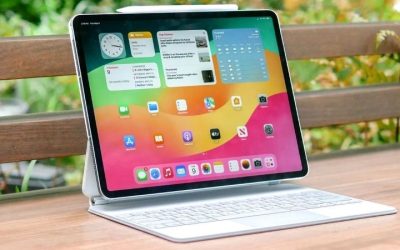
The iPad Pro M4 is the top drawing tablet: an OLED display up to 13 inches with 120Hz ProMotion, extreme brightness and full P3 colour, driven by the M4 chip and Apple Pencil Pro. Huge canvases, heavy layers and 3D art run without slowdown for professional workflows.
It is the most expensive option by a wide margin, and the Pencil Pro adds more. For working illustrators and designers who need the best colour, response and headroom in a tablet for drawing, it justifies the cost; hobbyists will find the Air delivers most of it for less.
How to Choose a Tablet for Drawing
Match the pen, colour and app to your art before you buy, and confirm the stylus and lamination suit line work. The points below settle most decisions faster than reading another colour-gamut chart end to end.
The Specs That Decide It
The deciding specs are pen pressure and tilt support, colour gamut (sRGB or wider P3), screen lamination and refresh rate. Laminated, high-refresh screens with a pro pen give the most natural line work; wide colour matters for finished illustration and print-accurate work.
Confirm your app runs on the platform, since Procreate is iPad-only while Clip Studio and Krita span more devices. Deciding pen and app first avoids the common regret of a bright screen paired with a basic pen that cannot render pressure the way your style needs.
Size and Fit for Your Workspace
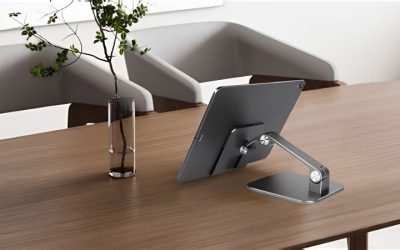
Screen size sets both canvas room and portability. An 11-inch tablet is easy to hold and travel with for sketching anywhere, while a 12 to 13-inch panel gives more drawing area for detailed studio work but is heavier and needs a stand for long sessions.
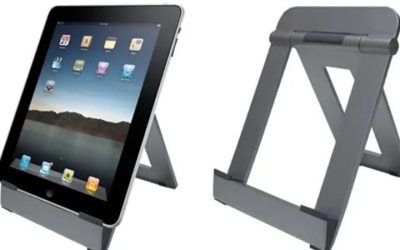
Think about where you draw: on a lap, at a desk or on the move. A stand or drawing case and a matte protector improve comfort and grip. Check the weight in grams and the screen dimensions against your setup so the tablet suits both your hand and your workspace.
Colour, Storage and Timing
Colour accuracy and storage grow in importance as work gets serious. Wide P3 or a factory-calibrated panel keeps finished pieces true, and layered, high-resolution files eat space fast, so favour more storage or microSD where offered rather than the smallest capacity option.
On timing, the late-June Prime Day and November sales are the strongest discount windows for drawing tablets, and art slates and pens are common gifts in the holiday season, though sale dates move each year, so verify the official ones before you plan a purchase.
Tablet for Drawing FAQ
Artists ask these questions most when choosing a drawing device, covering standalone slates versus pen displays, iPad versus Android and whether budget tablets can handle serious art.
Do I need a pen display or a standalone tablet?
A pen display like a Wacom needs a computer to run, while a standalone tablet draws on its own with apps built in. For portability and simplicity, a standalone iPad or Android art slate wins. Choose a pen display only if you already work on a powerful desktop.
Is an iPad or Android better for drawing?
iPad has the deepest pro-art app library, including Procreate, and excellent Pencil support. Android tablets like the Galaxy Tab S9 run Clip Studio and Krita well and often include a pen. Pick iPad for Procreate and app depth, Android for value and an included stylus.
Can a budget tablet handle serious drawing?
Budget slates like the XPPen Magic Drawing Pad offer strong pen pressure and lamination for learning and hobby art. They limit heavy layers and pro app choice, so demanding professional work benefits from an iPad Air or Pro. For beginners, budget models are a genuinely capable start.
See More:
- Best eyeshadow blender brush
- Best frozen foods for air fryer
- Best frozen food for air fryer
- Best way to reheat steak in air fryer
- Best air fryer recipes book
Bottom Line on the Best Tablet for Drawing
The best tablet for drawing matches your pen and app needs: an XPPen Magic Drawing Pad or Xiaomi Pad 6 for affordable sketching, an iPad 10th gen for learning with top apps, and a Galaxy Tab S9, iPad Air M2 or iPad Pro M4 for serious colour-accurate illustration. Confirm pen pressure, lamination and app support first, add a matte protector and stand for comfort, and let Prime Day or the holidays set the price. Buy for the pen and the art flows.