Desktop accessories guide shoppers waste money on gear that does not fit their ports or their desk, so this desktop accessories guide ranks the core upgrades by watts, port count and VESA fit. We lean on manufacturer specs and long-term owner feedback, weight the analysis toward decisions rather than lists, and flag one real drawback per pick.
As an Amazon Associate we earn from qualifying purchases.
Our top picks


 Logitech Brio 101 Full HD 1080p Webcam
- Sensor Type: Fluid crystal
- Connectivity Technology: USB-A
- Features: Low Light
Slide privacy cover blocks the camera when not in use
Plug-and-play setup works with Teams, Zoom, and Meet
RightLight auto-adjusts brightness to reduce shadows
USB-A connector may need an adapter for USB-C-only laptops
Relies on a single built-in mic rather than external audio


As an Amazon Associate we earn from qualifying purchases at no extra cost to you.
By Daniel Foster
Core Picks in This Desktop Accessories Guide
Four categories cover most desks: a dock or hub for connectivity, an arm to reclaim space, an input set for daily comfort, and a webcam for calls. The tiers below span budget to premium, and Amazon prices move often, so confirm the live figure before you buy.

| Accessory | Deciding number | Fit check | Tier |
|---|---|---|---|
| Anker 575 USB-C dock | 13 ports, 85W PD | Needs DP Alt Mode | Mid |
| Ergotron LX arm | Up to 25 lb (11.3 kg) | VESA 75/100, clamp | Mid |
| Logitech MX Keys S | 3-device pairing | Bluetooth/Bolt | Mid |
| Logitech Brio 100 | 1080p, privacy shutter | USB-A | Budget |
| Anker USB-C hub | 7-in-1, 100W passthrough | Single USB-C | Budget |
Dock or Hub: The Connectivity Base
Start here, because everything else plugs into it. A powered dock like the Anker 575 offers 13 ports and 85W of charging, enough for most laptops plus two displays from one cable. A cheaper 7-in-1 hub adds ports without charging muscle and suits lighter, single-screen setups.
The deciding numbers are port types, count and power-delivery wattage; too little wattage means a second charger stays on the desk. The drawback with USB-C docks is that peak multi-monitor resolution needs your laptop to support DisplayPort Alt Mode, so confirm that spec before buying.
For heavy dual-4K work a Thunderbolt dock adds bandwidth, but it costs more and is overkill for one 1080p or 1440p screen. Any solid desktop accessories guide starts with connectivity because a mismatched dock leaves peripherals dark no matter how good the rest of the gear is.
Monitor Arm: Reclaim the Desk
A stock monitor stand eats the deepest part of your desk. A gas-spring arm such as the Ergotron LX frees that space, holds panels up to 25 lb (11.3 kg) and 34 inches, and mounts by C-clamp or grommet. Measure desk-edge thickness and rear clearance before ordering.
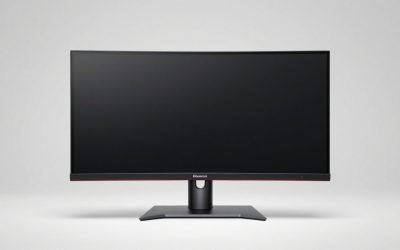
Check VESA fit (75×75 or 100×100) and, crucially, your monitor’s real weight, since heavy curved or ultrawide panels can exceed an arm’s rating. Screen weight, not screen size, is what fails a cheap arm over months as the joint sags and drifts down during the workday.
The trade-off is that panels without VESA holes need an adapter plate, adding cost and a little wobble. Done right, an arm is the single upgrade that most improves posture and desk footprint at once, which is why this desktop accessories guide rates it above a second gadget for many buyers.
Keyboard, Mouse and Webcam: Daily Comfort
Inputs are what you touch all day, so comfort beats spec-sheet flash. A multi-device wireless board like the MX Keys S pairs to three machines and recharges over USB-C, removing disposable batteries. Pair it with an ergonomic mouse sized to your hand rather than the flashiest model.
For calls, a 1080p webcam such as the Brio 100 with a privacy shutter fixes a laptop’s weak built-in camera at a budget price and plugs into USB-A with no driver hunt. Left-handers and small hands should check mouse shape carefully, as many premium mice suit only large right hands.
The connection question matters too: a shared receiver like Logi Bolt frees ports and cuts latency versus generic Bluetooth. Match one receiver family across devices and you spend less on adapters over time, a quiet saving this desktop accessories guide flags because recurring cost adds up.
How to Choose Desktop Accessories
Beyond individual picks, a repeatable method saves money: read the deciding numbers, measure your space, then weigh recurring cost. Work through these before adding anything to your cart so each item fits the desk you actually have.
The Specs That Decide It
For docks and hubs, the deciding figures are port types, count and power-delivery wattage. For arms and stands, it is VESA pattern, adjustment range and load rating in pounds and kilograms. For inputs, it is connection type, ergonomics and battery life measured in weeks or months.
Reading these first prevents the classic error of a lovely accessory that cannot power your laptop or hold your screen. When two products look similar, the spec that matches your exact laptop and monitor, not the marketing copy, is the one that should decide the purchase.
Space and Fit at Your Desk
Every accessory has a footprint. An arm needs specific edge thickness and rear clearance; a dock needs a spot near your ports; a light bar needs a stable top bezel. Sketch the layout and note measurements in inches and centimetres before you order anything larger than a mouse.
Desk depth also gates monitor size, since a deep curved or ultrawide panel sits too close on a shallow desk. Confirm each item’s dimensions against your plan rather than trusting product photos, which routinely make bulky docks and subwoofers look smaller than they are in person.
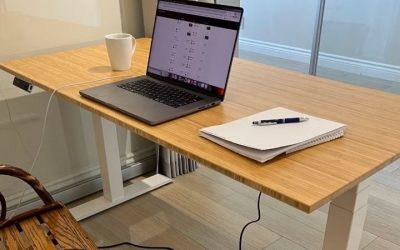
Cable routing is part of fit too. Leave slack behind the desk for a dock and its display leads, and use a tray or clips so cords do not spill onto the floor. On a height-adjustable desk this matters more, since cables that run too short can snag or unplug as the surface rises.
Total Cost and Compatibility
Look past the sticker price to lock-in and recurring spend. Rechargeable peripherals end disposable-battery cost, and a shared receiver connects several devices through one USB slot, freeing ports. Matching one charging standard keeps future buys compatible and shrinks your pile of one-off cables.
Confirm a dock supports your laptop’s video mode and an arm’s VESA pattern matches your monitor before purchase. This desktop accessories guide keeps returning to compatibility because it is the top reason gear gets sent back: the item works, but not with the exact machine on your desk.
Warranty terms are worth a glance before you buy. Arms and frames often carry longer coverage than the electronics or batteries inside a dock or mouse, and replaceable parts, like a spare receiver or a new gas spring, decide whether a small fault means a quick fix or a full replacement.
Desktop Accessories Guide FAQ
Readers ask the same practical questions when planning a first upgrade round, so here are direct answers on docks, arms and wireless reliability.
Do I need a dock or just a USB-C hub?
A hub adds ports cheaply and suits single-screen laptops with light charging needs. A powered dock adds high-wattage charging and stronger multi-monitor support for busier setups. If a second charger currently clutters your desk, a dock with 85W or more is the upgrade that removes it.
How do I know an arm fits my monitor?
Match two numbers: your monitor’s weight against the arm’s load rating, and its VESA pattern (75x75mm or 100x100mm). Then confirm desk-edge thickness for a clamp or a spare grommet hole. Panels without VESA holes need a separate adapter plate, so check the rear of your screen first.
Are wireless keyboards and mice good enough for work?
Yes. Modern models are stable over Bluetooth or a 2.4GHz receiver with battery life in weeks or months, and a unifying receiver cuts latency while freeing ports. Keep a USB-C cable nearby so a low charge never interrupts your day, and wireless input becomes a non-issue for work.
See More:
- Best eyeshadow blender brush
- Best frozen foods for air fryer
- Best frozen food for air fryer
- Best way to reheat steak in air fryer
- Best air fryer recipes book
Bottom Line: Using This Desktop Accessories Guide
The point of any desktop accessories guide is to buy once and fit right: start with a dock whose wattage and ports match your laptop, add an arm rated for your screen’s real weight, then choose inputs and a webcam for daily comfort and clean calls. Measure your space, confirm VESA and video compatibility, and treat Prime Day or Black Friday as timing rather than a reason to overspend. Match specs to your desk and every upgrade earns its place.