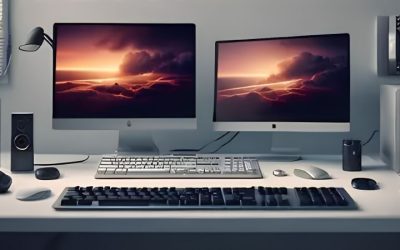
Dual monitor setup planning is about more than buying two screens: matching panels, mounting and connectivity all decide how well it works. A good dual monitor setup keeps both displays aligned, cable-free and easy to drive, so this guide covers the decisions and the gear to build a clean, productive two-screen desk.
As an Amazon Associate we earn from qualifying purchases.
Our top picks


As an Amazon Associate we earn from qualifying purchases at no extra cost to you.
By Daniel Foster
Planning Your Two-Screen Desk
Before buying anything, work out what the two screens must do and where they will sit. Getting the plan right first avoids mismatched panels, a cramped desk or a laptop that cannot drive both, which are the common frustrations that derail a two-screen build.
| Decision | What to match | Why it matters |
|---|---|---|
| Screens | Size, resolution, stand height | Aligned, consistent image |
| Mounting | VESA pattern, arm weight rating | Alignment and desk space |
| Connectivity | Ports, USB-C, daisy-chain | Can your device drive both |
| Desk | Width and depth | Both screens fit comfortably |
The decision numbers: matching, mounting and ports
A dual monitor setup works best when the two panels match in size, resolution and height, so the image stays consistent as you move between them. Mismatched screens create a jarring step in scale and color, so aim for identical or closely matched models where you can.
Mounting is the next number. Check the VESA pattern, usually 100x100mm, and a dual arm’s weight rating per screen, since both must support your panels. A dual monitor arm keeps the screens aligned and frees the desk, which a pair of bundled stands rarely does as cleanly.
Connectivity decides whether your device can drive both. Confirm your laptop or PC has enough video outputs, or that USB-C daisy-chaining or a dock can run two displays, since this is the step most people overlook until the second screen refuses to turn on.
Space and fit: desk width and layout
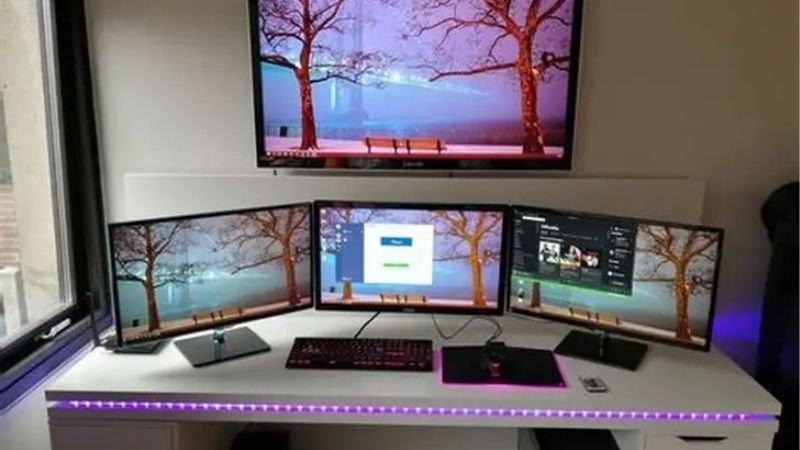
Two screens need real desk width, so measure before you buy. A pair of 27-inch panels spans a lot of space, and you need room to angle them slightly inward toward you, so confirm the desk is wide and deep enough for a comfortable dual monitor setup.
Plan the layout for how you work. Two screens side by side suit multitasking, while a main-plus-secondary layout, sometimes with one rotated to portrait, suits coding or reference work, so decide the arrangement before choosing stands or an arm to support it.
A dual monitor arm reclaims the desk surface under the screens for notes, a keyboard or a laptop. It also lets you fine-tune height and angle so both panels sit at eye level, which reduces neck strain over long days far better than fixed factory stands.
Connectivity: can your device drive both?
The step most people miss in a dual monitor setup is confirming their computer can actually output to two external screens. A desktop with two video ports is straightforward, but laptops vary widely, so check the specification before assuming a second display will work.
USB-C makes this cleaner when supported. A single cable can drive one screen and pass power, while daisy-chaining or a USB-C dock can run both panels plus peripherals from one connection, cutting cable clutter and simplifying the morning plug-in to a single step.
Match the output resolution too. Some laptops and docks limit the second screen to a lower resolution or refresh rate, so verify that both displays can run at their native resolution before you buy, since a mismatched pair undoes the clean, consistent look you planned.
Gear for a Dual Monitor Setup
With the plan set, these picks cover the core gear: screens suited to pairing, a solid arm and the connectivity to drive both. Match them to the decisions above and your dual monitor setup will be clean, aligned and easy to run from day one.
Matching screens: Dell UltraSharp U2422HE
The Dell UltraSharp U2422HE is ideal for a dual monitor setup because it supports USB-C daisy-chaining, so one panel feeds the other from a single laptop cable. Its fully adjustable stand also matches height and tilt easily, keeping two identical units perfectly aligned.
At 24 inches and 1080p it offers less resolution than a 4K panel, so heavy detail work may want larger screens. As a matched, easy-to-connect pair for a tidy two-screen office, though, it is one of the most convenient choices available for the job.
Dual monitor arm: Ergotron LX Dual
A quality dual arm is the backbone of a clean setup, and the Ergotron LX Dual is a durable, smooth-adjusting option. It holds two panels within its weight rating, aligns them precisely and frees the desk surface, which bundled stands simply cannot do as well.
It is a premium arm, and you must confirm your monitors fall within its weight and size limits. For a lasting, stable dual monitor setup where alignment and desk space matter, though, a strong arm like this pays off every day over cheaper, wobblier alternatives.
Budget arm and connectivity options
If budget is tight, brands like VIVO and HUANUO make affordable dual monitor arms that cover the basics, though with less refined adjustment than premium models. Check the VESA compatibility and weight rating carefully, since cheaper arms have tighter limits on panel size.
For connectivity, a USB-C docking station lets a laptop drive two external screens plus peripherals over one cable. Confirm the dock supports dual-display output at your resolution, since some limit the second screen, and this often replaces a tangle of adapters entirely.
Getting the ergonomics right
Once the gear is in place, set both screens at eye level and angle them slightly inward so your neck stays neutral as you glance between them. Keeping the tops aligned and the panels equidistant reduces strain, which matters most across a long working day at the desk.
Position your primary screen directly ahead if you use one more than the other, with the second to the side. If you split attention evenly, center the gap between them, and either way keep both at arm’s length so your eyes are not constantly refocusing between distances.
Frequently Asked Questions
Here are quick answers to the questions readers ask most when building a two-screen desk, so you can plan with confidence.
Do both monitors need to be the same?
Not strictly, but matching size, resolution and height makes the image consistent and the setup cleaner as you move between screens. Mismatched panels create a step in scale and color, so identical or closely matched models are the easiest, most comfortable choice.
Can my laptop run two external monitors?
It depends on the laptop’s video outputs and USB-C support. Some can drive two external screens directly or through a dock or daisy-chain, while others are limited to one, so check your laptop’s specification before buying two panels to avoid a screen that will not turn on.
Is a dual monitor arm worth it?
For most people, yes. An arm aligns both screens precisely, lets you set them at eye level and frees the desk surface underneath, which bundled stands rarely manage. Just confirm your monitors fall within the arm’s weight and size limits before buying.
Should one screen be vertical?
It can help for specific tasks. A rotated portrait screen suits reading long documents, code or chat logs alongside a main landscape display, so if that fits your work, choose panels and an arm that support pivoting to portrait orientation.
See More:
- Best eyeshadow blender brush
- Best frozen foods for air fryer
- Best frozen food for air fryer
- Best way to reheat steak in air fryer
- Best air fryer recipes book
Final Thoughts on Building a Dual Monitor Setup
A great dual monitor setup starts with matching screens, a solid arm and connectivity that can actually drive both panels. Match size and resolution for a consistent image, mount on a rated dual arm to align the screens and free the desk, and confirm your device can output to two displays. Measure your desk, get the ergonomics right, and time any purchase around a major sale, and your dual monitor setup will make everyday work noticeably more productive.