
Key takeaways
- Map your coverage. Use your router’s app or a free Wi-Fi analyzer app to check signal strength. Aim for -67 dBm or stronger where smart devices are installed. Anything weaker than -75 dBm will cause intermittent disconnects, especially for 2.4 GHz IoT devices.
- Count everything. Include each bulb, switch, camera, sensor, and speaker. A 2-bedroom home with a few cameras and GHome Smart Switches can easily exceed 25 clients. If you have 50+ devices, you need a system rated for 100+ devices, not a single budget router.
- Identify dead zones. Smart switches in metal junction boxes, cameras at the edge of the house, and garage door openers are common culprits. Note which devices suffer most and whether they support only 2.4 GHz — nearly all budget smart switches and plugs do.
- Check your internet plan. For a smart home, 100-300 Mbps down is sufficient for most households. Stability and low latency matter more than gigabit download speeds. If your router is more than 4-5 years old and lacks Wi-Fi 6, it is likely the bottleneck.
In 2026, the average smart home runs 21 to 34 connected devices at once — from door locks and thermostats to lights, cameras, plugs, and voice assistants. If your Wi-Fi was designed for just phones and laptops, that load quickly leads to lag, dropouts, and devices that show as offline in your app. Optimizing your network is not about chasing the highest advertised speed, but about delivering stable, low-latency coverage to every corner where a smart device lives.
This guide shows you how to diagnose weak spots, choose the right hardware for your home size and device count, and configure your network for reliability. Whether you need whole-home mesh coverage or a targeted fix for a dead zone, you will learn where to place hardware, which settings matter for IoT devices, and how to keep your smart home fast and secure.
Our top picks




As an Amazon Associate we earn from qualifying purchases at no extra cost to you.
⚡ Save on Your Next PC — Amazon Prime
Prime members get fast free shipping on the systems above, plus early access to Prime Day & Black Friday PC deals. New members get a 30-day free trial.
Watch: How to Optimize Your Wi-Fi Network for Smart Home Devices — Video Review
1. Audit Your Home: Coverage, Device Count, and Dead Zones
Start with data before you buy. Most issues come down to two factors: square footage and device density.
- Map your coverage. Use your router’s app or a free Wi-Fi analyzer app to check signal strength. Aim for -67 dBm or stronger where smart devices are installed. Anything weaker than -75 dBm will cause intermittent disconnects, especially for 2.4 GHz IoT devices.
- Count everything. Include each bulb, switch, camera, sensor, and speaker. A 2-bedroom home with a few cameras and GHome Smart Switches can easily exceed 25 clients. If you have 50+ devices, you need a system rated for 100+ devices, not a single budget router.
- Identify dead zones. Smart switches in metal junction boxes, cameras at the edge of the house, and garage door openers are common culprits. Note which devices suffer most and whether they support only 2.4 GHz — nearly all budget smart switches and plugs do.
- Check your internet plan. For a smart home, 100-300 Mbps down is sufficient for most households. Stability and low latency matter more than gigabit download speeds. If your router is more than 4-5 years old and lacks Wi-Fi 6, it is likely the bottleneck.
2. Choose the Right Solution: Mesh System vs. Single Extender
The right hardware depends on home size, construction, and how many devices you need to support. This is where mesh and extenders solve very different problems.
- For whole-home coverage: Wi-Fi 6 mesh. A 3-pack mesh system shares a single network name and intelligently routes devices to the strongest node. For homes up to 5,500 sq. ft. with around 100 devices, the TP-Link Deco M5 remains a reliable, affordable option. For larger or faster homes that need Wi-Fi 6 and higher capacity for 4K streaming plus smart home load, the TP-Link Deco X55 AX3000 is a stronger choice, with OFDMA and 160 MHz channels to handle more simultaneous clients efficiently.
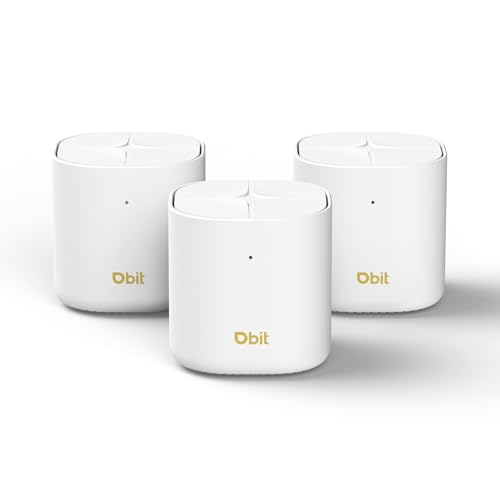
- For very large homes and wired backhaul: The DBIT AX1800 system covers up to 6,500 sq. ft. and up to 150 devices with its 3-pack and includes 6 Gigabit Ethernet ports in total across the nodes. Use Ethernet backhaul when possible — connecting mesh nodes via Ethernet frees up the wireless bands and can cut latency by 30-50% compared to wireless backhaul.
- For a single dead zone: a targeted extender. If your main router is solid but one room is weak, an extender is cheaper and faster to deploy. The 300Mbps WiFi Extender covering up to 1,200 sq. ft. is ideal for a small apartment or to reach a far bedroom with a few smart plugs. Choose the WiFi Extender Signal Booster Repeater Adapter with Ethernet port if you need outdoor, garage, or bridge mode — its access point and wireless bridge functions let you connect via cable to a detached space or wire in a device that only has Ethernet.
Rule of thumb: If you have two or more dead zones, frequent roaming issues, or more than 40 active devices, choose mesh. If you have one weak spot and under 30 devices, an extender is sufficient.
3. Place Your Hardware for Maximum Reliability
Even the best system underperforms if placed poorly. Smart home devices are often fixed in place, so your network must come to them.
- Elevate and center. Place the main router or primary mesh node in the central area of the home, 4-6 feet high, in the open — not inside a cabinet, behind a TV, or on the floor. Each additional node should be 30-45 feet from the next, with one wall at most between nodes.
- Avoid interference sources. Keep nodes at least 6 feet from microwaves, baby monitors, Bluetooth hubs, and large mirrors or aquariums. Avoid placing a node that serves GHome Smart Switches inside a closed closet or metal media panel; the switch itself is already in a metal box, so it needs the strongest possible 2.4 GHz signal.
- Use wired backhaul for extenders and remote nodes. If you use the long-range WiFi Extender adapter with an Ethernet port, run a cable to your router and set it to Access Point mode for maximum stability — especially useful for outdoor cameras and smart lighting on a patio or detached garage.
- Do not hide nodes near the floor. Wi-Fi signals spread laterally and slightly downward. A node on a shelf in a hallway performs 15-20% better than one on the floor behind a sofa.
4. Optimize Network Settings for Smart Home Devices
Most IoT disconnects are caused by band steering or congested settings, not weak hardware. A few targeted changes make a big difference.
- Separate or prioritize 2.4 GHz. Smart switches like the GHome Smart Switches require 2.4 GHz and do not support 5 GHz. If your router aggressively steers everything to 5 GHz, these devices will fail to pair. Enable a dedicated 2.4 GHz SSID or enable IoT network features in the Deco or DBIT apps, and use 20 MHz channel width on 2.4 GHz to reduce interference.
- Choose clean channels. On 2.4 GHz, use channels 1, 6, or 11 only. On 5 GHz, use auto channel selection with DFS enabled if your router supports it. A Wi-Fi analyzer can show you which channel has the least congestion from neighbors — critical in apartments.
- Update firmware and enable WPA3/WPA2 mixed mode. All recommended mesh systems receive automatic security updates. Keep mixed mode on for compatibility, as many 2023-2024 smart devices still use WPA2. Turn on automatic firmware updates and reboot your system monthly.
- Use QoS and device limits wisely. Enable QoS or device prioritization for critical devices like security cameras and video doorbells, which need 2-4 Mbps upload per camera continuously. Do not throttle your IoT VLAN so low that firmware updates fail.
Tips
- Create a dedicated IoT SSID or VLAN for smart home devices. It isolates traffic, improves security, and prevents your phone from competing with 30 idle sensors on the same band.
- Name devices clearly in your router app (e.g., Kitchen-GHome-Switch-1) and reserve IP addresses for fixed devices like cameras. This makes troubleshooting and automation much faster.
- Test after installation by walking your phone around and checking signal strength in the app. Verify that far switches respond within 1-2 seconds and that cameras maintain at least 2 Mbps upload without drops.
- If you add more than 10 devices after setup, reboot your mesh system and check load. Mesh nodes perform best when no single node handles more than 40-50 active clients.
Frequently Asked Questions
Do I need Wi-Fi 6 for smart home devices?
Most smart switches and sensors use Wi-Fi 4 or 5 on 2.4 GHz and do not need Wi-Fi 6 speeds. However, Wi-Fi 6 mesh systems like the TP-Link Deco X55 AX3000 and DBIT AX1800 handle 50+ simultaneous clients more efficiently thanks to OFDMA and better airtime management. In 2026, Wi-Fi 6 is the smart choice if you have 30+ devices or plan to add cameras and matter devices.
Will a Wi-Fi extender cut my speed in half?
Older single-band repeaters did. Modern dual-band extenders and Wi-Fi 6 mesh nodes use dedicated backhaul radios or Ethernet backhaul, so the loss is minimal when placed correctly. For best results, keep the extender within good signal range (-67 dBm or better) of the main router and use Access Point mode with an Ethernet cable if you have one.
Why do my GHome Smart Switches keep going offline?
This is almost always a 2.4 GHz issue. Make sure the switches are connected to a 2.4 GHz SSID, that the access point is not too far (ideally within 35 feet with one wall max), and that you are not using a 40 MHz channel width on 2.4 GHz. Assign the switches to the nearest mesh node in the app and ensure that node has strong backhaul to the main router.
How many mesh nodes do I need?
For a 1,500-2,500 sq. ft. home, two nodes often suffice. For 3,500-5,500 sq. ft., choose a 3-pack like the TP-Link Deco M5 or Deco X55. For 6,000+ sq. ft., multi-story, or homes with thick brick or plaster walls, the DBIT AX1800 3-pack with up to 6,500 sq. ft. of coverage provides better headroom and more Ethernet ports for wired devices.
Conclusion
A reliable smart home depends on consistent coverage, not just peak speed. By mapping your weak spots, choosing mesh for whole-home needs or a focused 300Mbps WiFi Extender or long-range adapter with Ethernet for single-zone fixes, placing hardware centrally and high, and locking in 2.4 GHz-friendly settings, you can keep every switch, sensor, and camera online. Set it up once, update firmware automatically, and your network will quietly handle 100+ devices without daily disconnects or slow responses.










Write Your Review
No reviews yet. Be the first to share your experience!