Key takeaways
- Work from home setup planning is about the essentials that protect your comfort and productivity, not gadgets. A good work from home setup gets your screen to eye level, your input comfortable and your calls clear, so this guide covers…
What's inside
Work from home setup planning is about the essentials that protect your comfort and productivity, not gadgets. A good work from home setup gets your screen to eye level, your input comfortable and your calls clear, so this guide covers the priorities and the gear to build a home office that lasts.
As an Amazon Associate we earn from qualifying purchases.
By Daniel Foster
Building the Foundation
A lasting home office starts with ergonomics and connectivity, not the flashiest gear. Get these fundamentals right and everything else falls into place, because a comfortable posture and a tidy, reliable connection matter far more than any single accessory on the desk.
| Priority | Why it matters | Key gear |
|---|---|---|
| Screen at eye level | Reduces neck strain | Monitor arm / laptop stand |
| Comfortable input | Eases wrists and shoulders | External keyboard + mouse |
| Clear calls | Professional meetings | Webcam + headset |
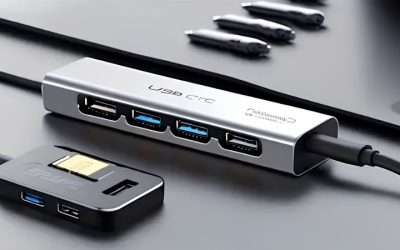
| Tidy connectivity | One-cable simplicity | USB-C dock or hub |
The decision priorities: ergonomics and connectivity
The core of any work from home setup is ergonomics and connectivity. Get your screen to eye level, use an external keyboard and mouse so your wrists and shoulders relax, and set up reliable one-cable connectivity, since these decide comfort and simplicity every day.
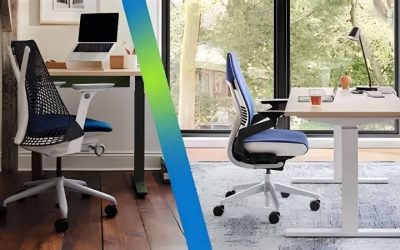
Prioritize a proper chair and screen height above accessories. A monitor at eye level and a supportive chair prevent the neck and back strain that long days cause, so spend here first before adding lighting, mats or other secondary items to the desk.
Then tidy the connection. A USB-C dock or hub lets one cable link your laptop to a monitor, peripherals and power, which removes daily cable fuss, so treat clean connectivity as a foundational priority rather than an afterthought in your setup.
Space and fit: planning your desk and room
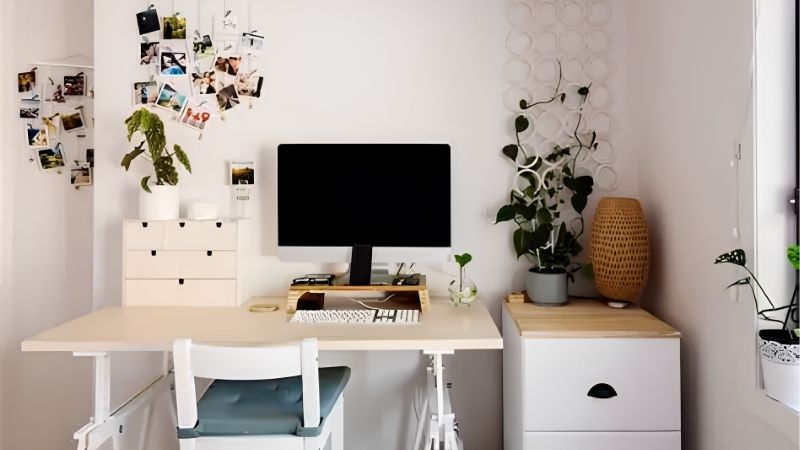
Measure your desk and room before buying, since space shapes a work from home setup. Confirm the desk is deep enough for a screen at arm’s length and wide enough for a keyboard and mouse, and that there is room for a chair to move.
Consider lighting and background for calls. Position the desk so a window or lamp lights your face rather than backlighting you, and check what appears behind you on camera, since a tidy, well-lit background makes video meetings look far more professional.
Plan for a dedicated, quiet spot if possible. A consistent workspace separate from living areas helps focus and signals work time, so even a small dedicated corner beats working from a sofa or kitchen table for long-term comfort and productivity.
Ergonomics and comfort over a long day
Comfort compounds over hours, so build the setup around your body. A screen at eye level, forearms roughly parallel to the floor, and feet flat or on a footrest reduce strain, so adjust your chair, desk and screen together rather than in isolation.
Move regularly regardless of gear. Even the best ergonomic setup benefits from standing and stretching breaks, so a good work from home setup encourages movement, and a sit-stand desk or reminders can help you avoid sitting still for too long at once.
Key Gear for a Home Office
With the priorities set, these picks cover the essentials of a comfortable, productive work from home setup. Match them to the foundations above, and your home office will support good posture, clear calls and tidy connectivity from the first day you use it.
Monitor and eye-level screen
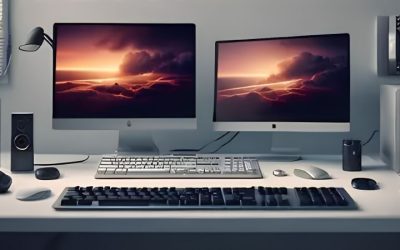
A good external monitor is the centerpiece, and a 27-inch 4K IPS panel like the Dell UltraSharp U2723QE keeps text crisp with a USB-C hub for tidy connection. Pair it with a monitor arm to set the perfect height and free the desk beneath.
If you work mainly on a laptop, a laptop stand raises the screen to eye level instead, though you then need an external keyboard and mouse. Either way, getting the screen height right is the single most important step for comfort in a home office.
Keyboard, mouse and comfort
Comfortable input is the next priority. A quiet, comfortable keyboard like the Logitech MX Keys S and a shaped mouse such as the MX Master 3S ease long typing and clicking, and an ergonomic or vertical option helps if your wrists tire.
Add wrist support and keep the mouse close to reduce shoulder reach. These support good posture rather than treating any condition, so if you have pain, see a professional, but for everyday comfort the right input gear makes a real difference.
Camera, audio and connectivity
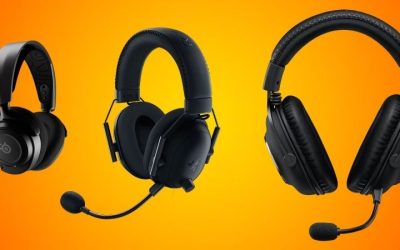
Clear calls need a decent webcam and headset. A reliable 1080p webcam like the Logitech C920x and a comfortable headset with a good mic, such as a Jabra Evolve2 model, make meetings look and sound professional without a studio budget.
Tie it together with a USB-C dock so one cable connects the monitor, peripherals, camera and power. That one-cable simplicity is a hallmark of a well-planned work from home setup, cutting the daily fuss of plugging in and keeping the desk tidy.
Lighting and a professional background
Lighting is the most overlooked part of a home office, yet it shapes how you look on every call. A light facing you, whether a window or a lamp, prevents the silhouette effect of backlighting, and a monitor light bar eases eye strain during long evening sessions.
Your background matters almost as much. A tidy, neutral space behind you keeps meetings looking professional, so position the desk with that in mind, or use a simple shelf or plant to keep the view clean without resorting to distracting virtual backgrounds.
Together, good lighting and a clean background finish a work from home setup that already has ergonomics and connectivity sorted. They cost little, take minutes to arrange, and make a visible difference to how polished and prepared you appear on camera.
Frequently Asked Questions
Here are quick answers to the questions people ask most when building a home office, so you can plan with confidence.
What is the most important part of a home office?
Ergonomics comes first, especially getting your screen to eye level and using a supportive chair with external input. Comfort over long days matters more than any single gadget, so prioritize posture before spending on lighting, decoration or other secondary gear.
Do I need a monitor if I have a laptop?
An external monitor or a laptop stand is strongly recommended, since a laptop screen sits too low for good posture. A monitor gives more space and eye-level height, while a stand plus external keyboard achieves the eye-level benefit more affordably.
How do I look professional on video calls?
Light your face from the front rather than behind, use a decent webcam, and keep a tidy background. A good headset with a clear mic also helps you sound professional, so combine lighting, camera and audio for the best impression on calls.
How can I keep my desk tidy?
Use a USB-C dock or hub so one cable connects your laptop to everything, and add cable management to route the rest out of sight. A monitor arm also frees desk space, so combine these for a clean, simple and professional workspace.
Final Thoughts on Your Work From Home Setup
A great work from home setup is built on ergonomics and connectivity: a screen at eye level, comfortable external input, clear call gear and one-cable simplicity. Prioritize your posture and a reliable connection before decoration, plan the space and lighting for calls, and move regularly through the day. Get these foundations right, time your purchases around a major sale, and your work from home setup will keep you comfortable and productive for years.